Figma Design to Code Plugin
Figma Design to Code, a Figma plugin, streamlines frontend development by generating WaveMaker-compatible code directly from Figma designs.
Developers can edit the generated code in WaveMaker Studio, importing designs for integration and refinement. Within WaveMaker Studio, they can also bind backend APIs and implement business logic, reducing manual code translation and accelerating development cycles.
Your Fast Track Guide
Design to Code

The workflow below starts in the WaveMaker Studio Project Hub, generates an access code, drives the Figma plugin with that code, and finishes with a new project opened in Studio.
Before You Begin
- Prerequisite: A free Figma account and access to WaveMaker Studio.
- Good to Know: It works on both the Figma browser and desktop app.
Steps to Use the Plugin
1. Start from the Project Hub
Open the WaveMaker Studio Project Hub and click Create App to start the project onboarding flow.
2. Choose Import from Figma
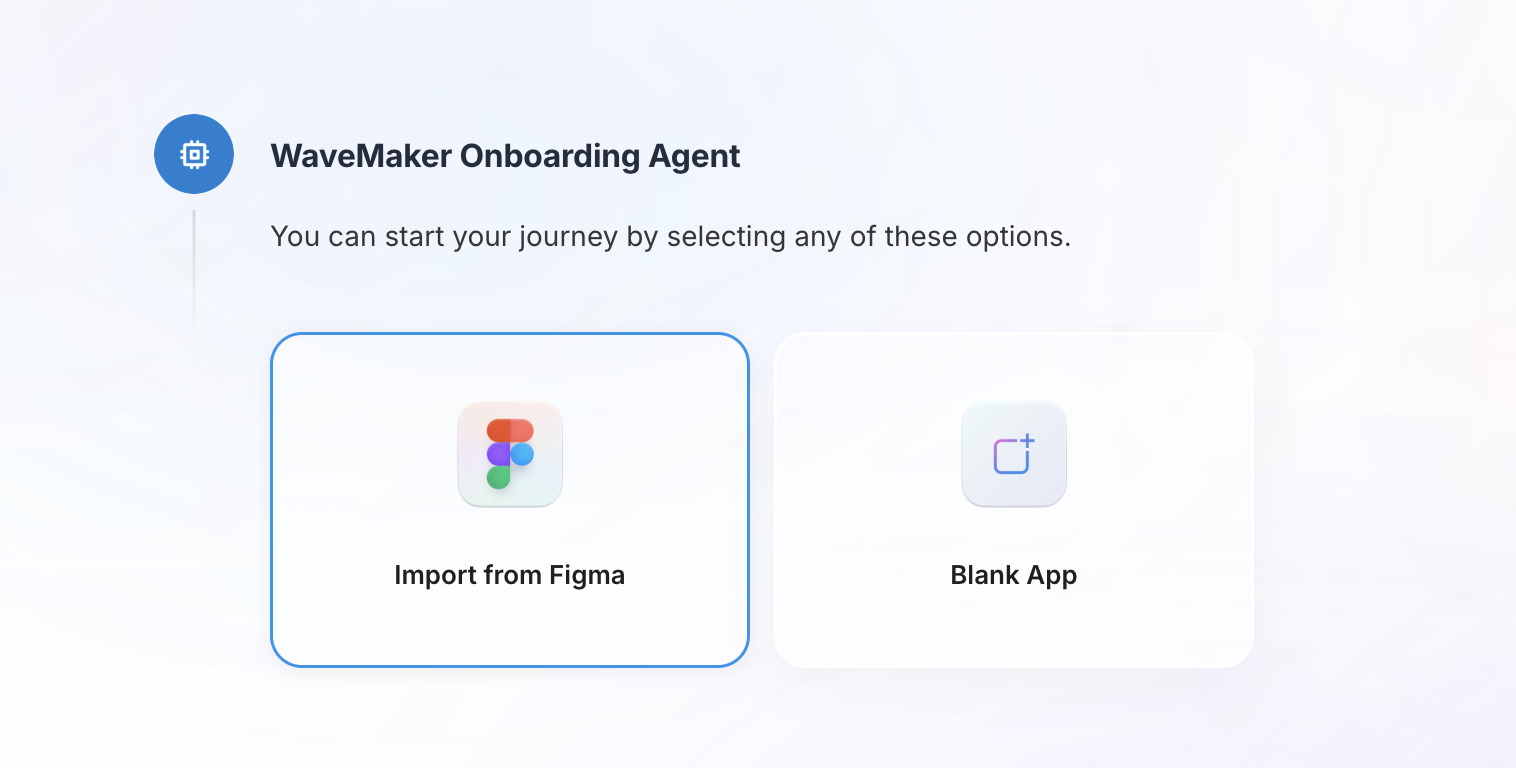
In the onboarding dialog, select Import from Figma instead of Blank Project. WaveMaker uses this option to set up a project that will receive code generated from your Figma design.
3. Copy the Access Code and Run the Figma Plugin
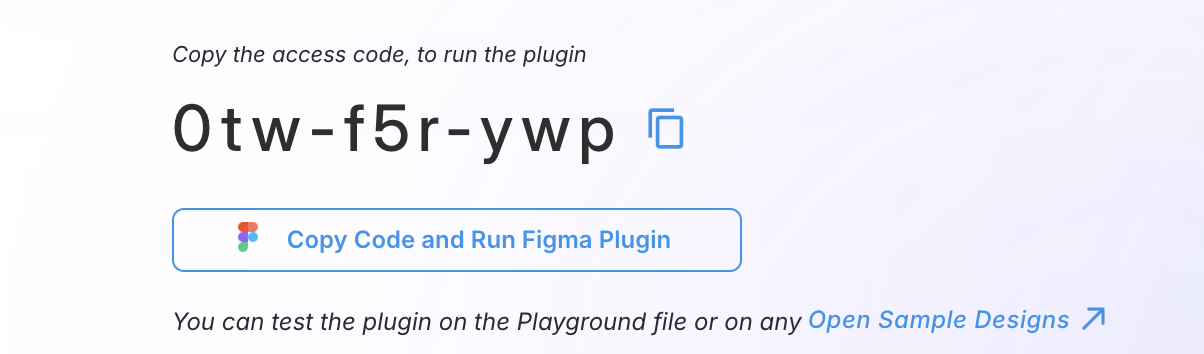
The onboarding screen generates an access code for the Figma plugin. Click Copy code and run Figma Plugin to copy the code to the clipboard and open the Figma plugin page in a new browser tab. Keep this tab open — you will return to it after launching the plugin in Figma.
4. Open Your Figma Design
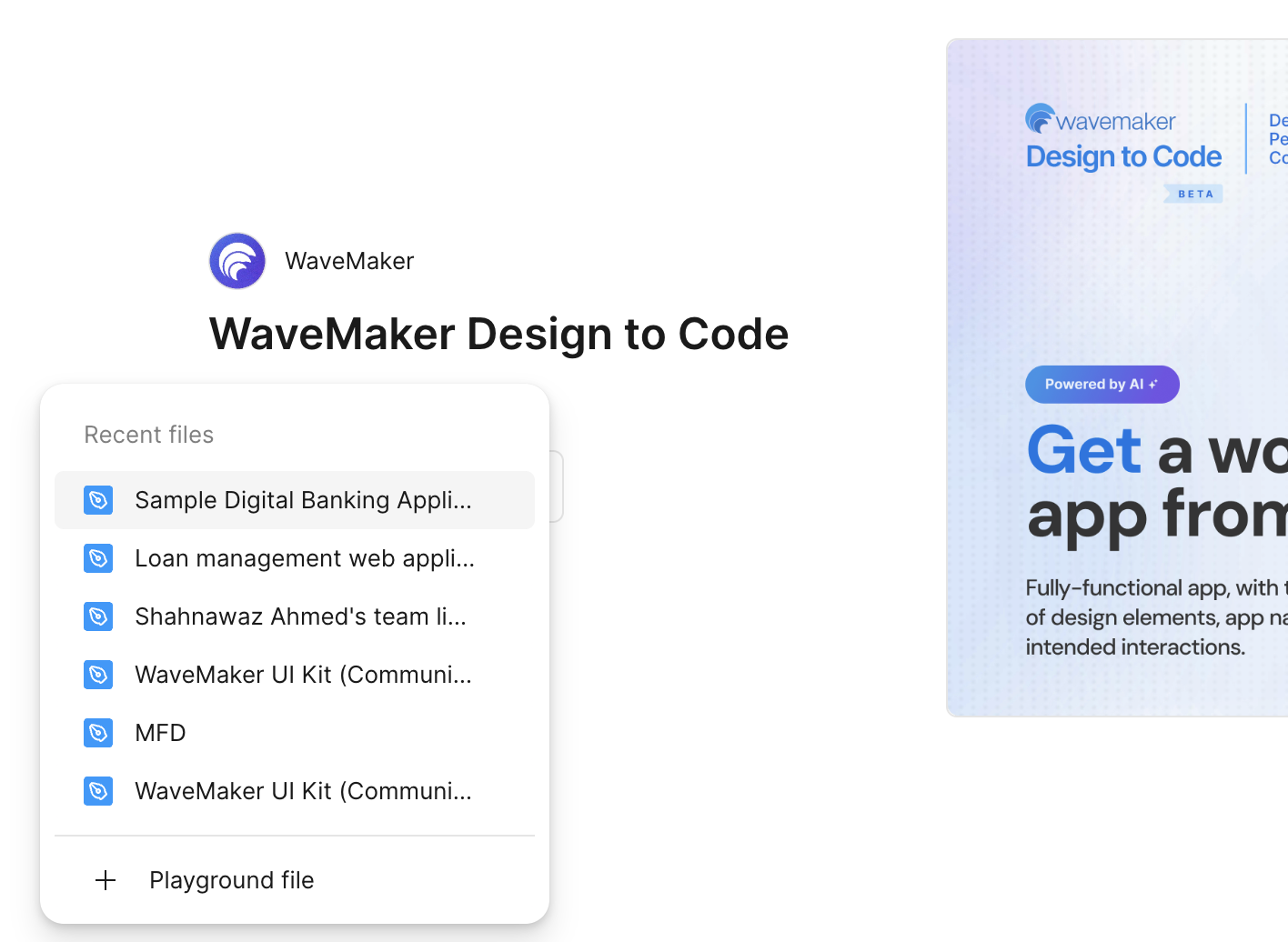
On the Figma plugin page, click the Open in... dropdown. The dropdown lists every Figma file you have access to. Select the file that contains the design you intend to convert. The file opens in Figma in a new tab, ready for the plugin to read.
5. Launch the WaveMaker Design to Code Plugin in Figma
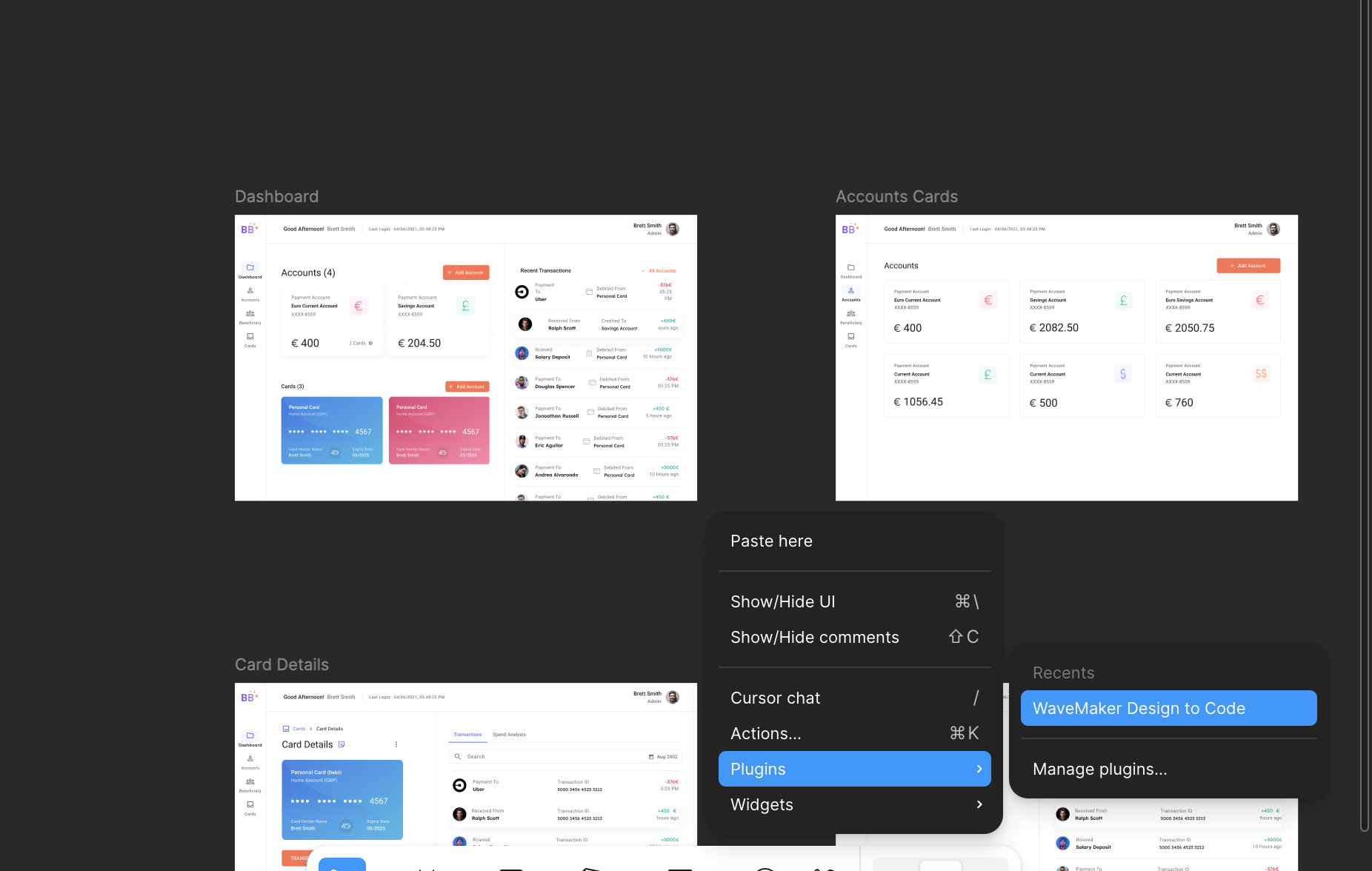
In the Figma design view, right-click anywhere on the canvas to open the context menu. Go to Plugins, and from the submenu select WaveMaker Design to Code. The plugin opens as a side panel in Figma, prompting you for the access code.
6. Submit the Access Code
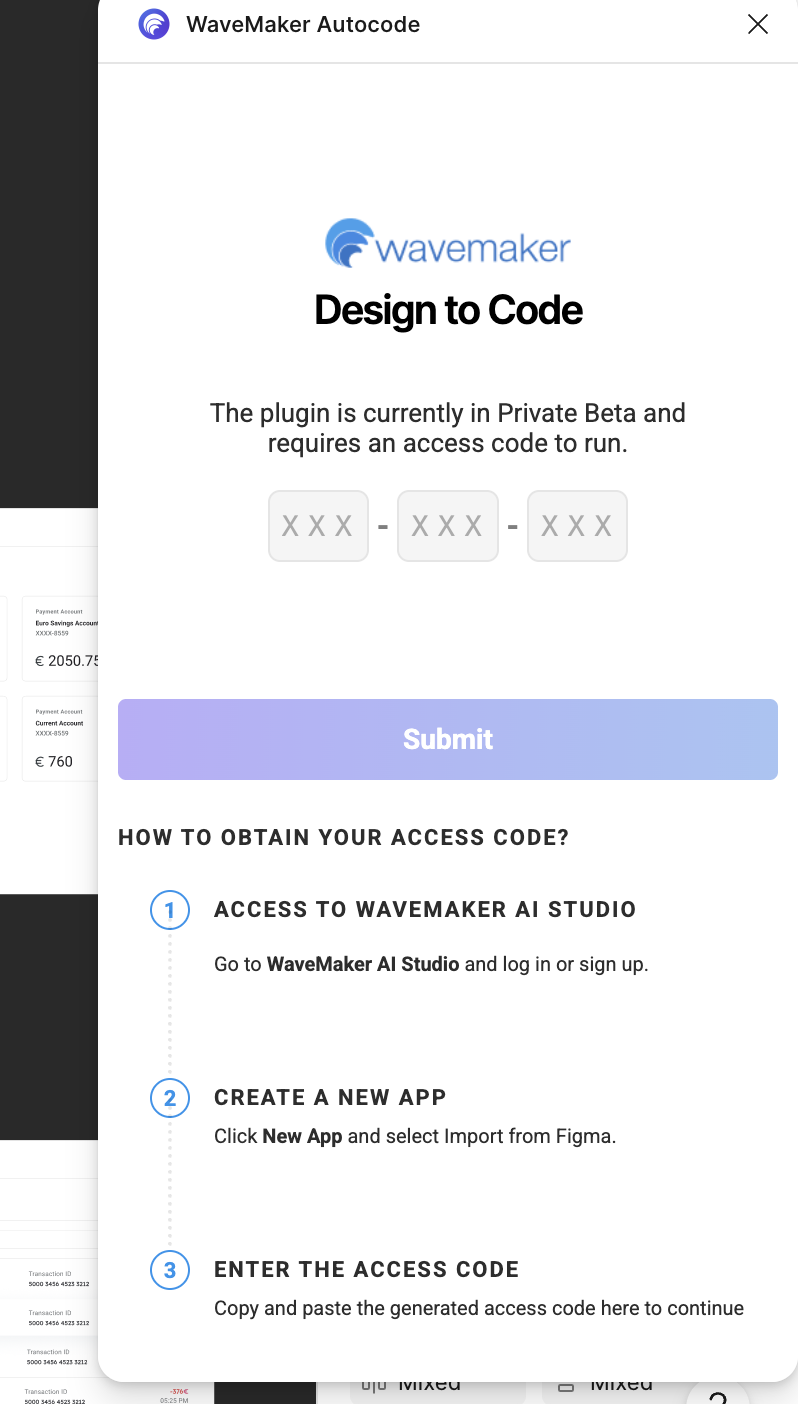
Paste the access code you copied in step 3 into the plugin panel and submit it. The plugin uses the code to link this Figma session to the project onboarding flow you started in Studio, so the generated code lands in the right project.
7. Select Pages to Convert
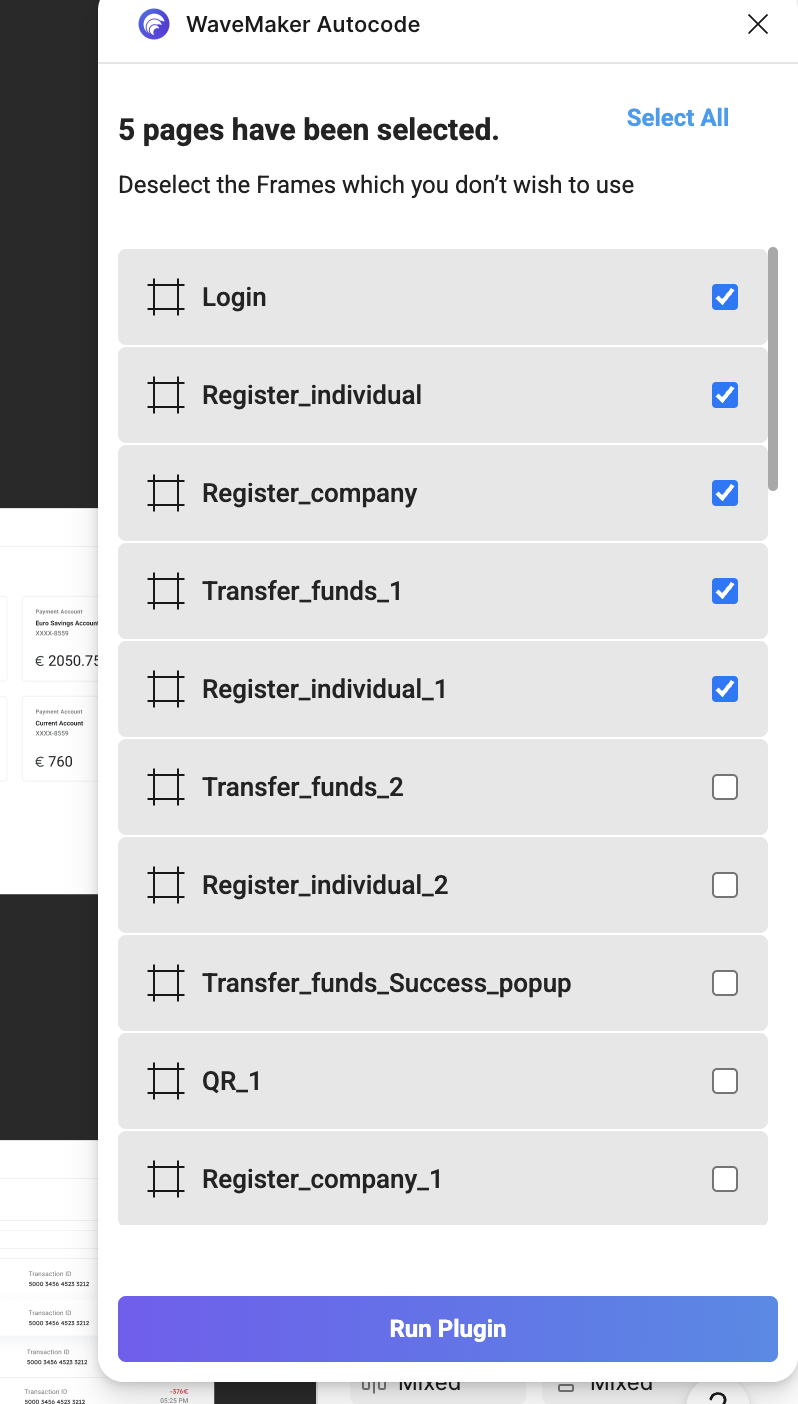
After the access code is accepted, the plugin lists every page in the Figma file with all pages selected by default. Deselect any pages you do not want to convert and keep only the ones you need. You can start with a small subset and convert the rest later from a fresh session.
8. Monitor Conversion Progress
Conversion progress is visible across all three surfaces: the Figma tab, the plugin panel, and the WaveMaker Studio onboarding page. As each page finishes converting, a preview button becomes available for that page so you can review the result while the remaining pages continue to process.
9. Name and Create the Project
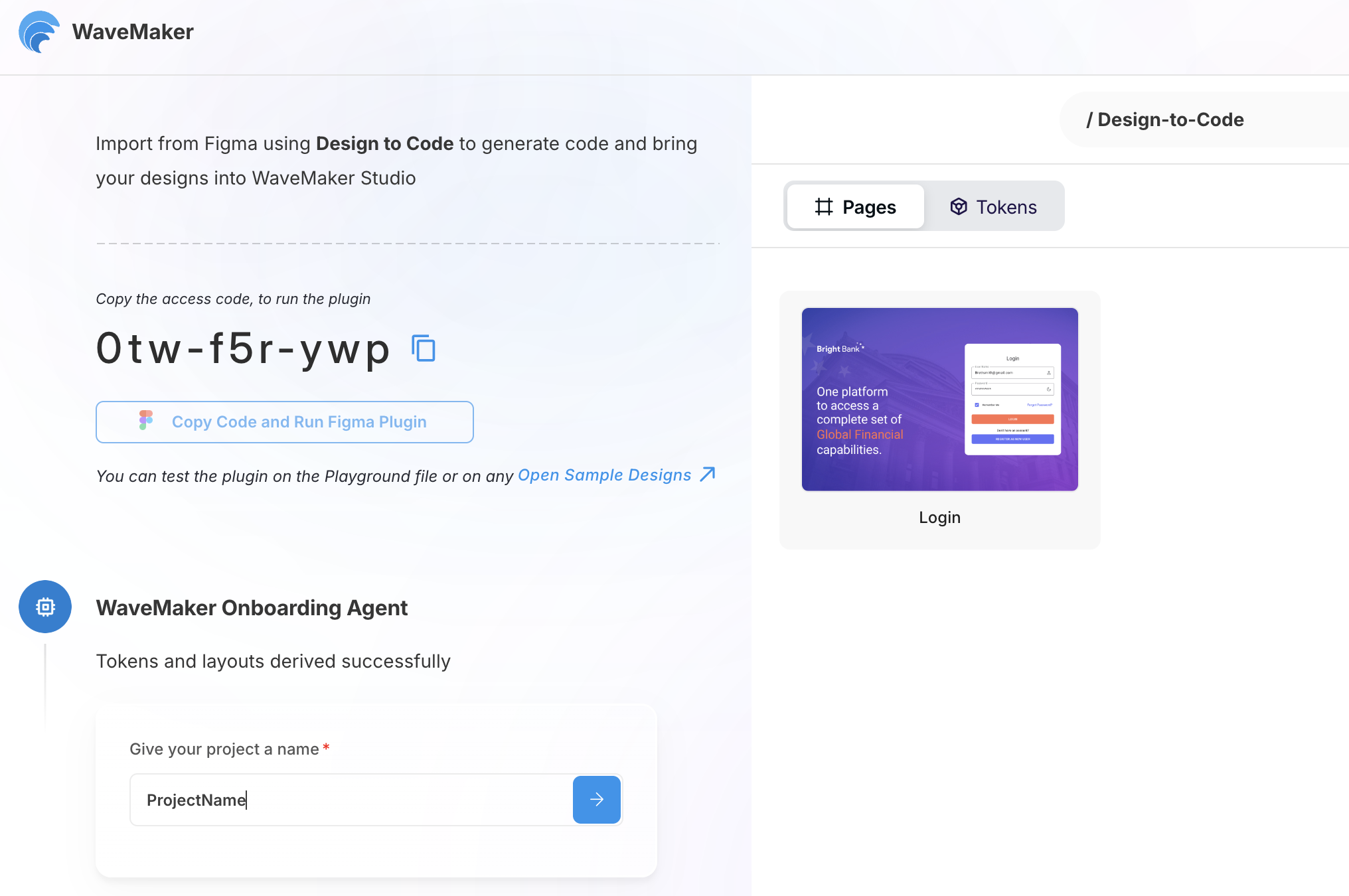
When the conversion completes, enter a project name in the Studio onboarding page and click the create button. The project opens in WaveMaker Studio with the generated code, ready for further customization.